Showing posts with label Best Practices. Show all posts

Thursday, June 25, 2015

How to change language in Backoffice PrestaShop?

In this short tutorial we would see how to change language in Back office for an employee or admin not the whole website.
Steps for changing the current language:

How to enable Catalogue Mode in PrestaShop?


Setting Catalog Mode in PrestaShop 1.6. is really a simple task. This mode  is same as normal shop, but without the option to purchase and check out. Lets see how to enable Catalog Mode.

Wednesday, June 24, 2015

Webservice not working if PrestaShop Developer Mode set to on

I recently encountered a very strange error my Web Services  were not working when developer mode is on. To enable error reports you can follow this link. After a lot of struggle I found out there was a bug listed under PrestaShop Forge portal stating Can't read orders with web service.

Enable Web Service for PrestaShop Shop


In this training module we would enable web service under PrestaShop Shopp

Saturday, June 20, 2015

How to View My Shop in Maintenance Mode

It is possible to put your shop into maintenance mode by going to: Back Office > Preferences > tick 'No' for Enable Shop. When in maintenance mode you may make changes to your shop without disrupting your customers' experience. When your changes are done, you can re-enable your shop by changing your Preferences.
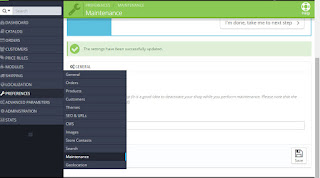
 

In maintenance mode, a holding page is displayed to all users expect those on the IP addresses configured in the PrestaShop Back Office. In this way, it is possible for you to make changes to your shop and view those changes on the front end before they are available to your customers:
Get your IP address from http://www.whatsmyip.org/
Go to Back Office > Preferences and enter your IP in the Maintenance IP field
Click Save
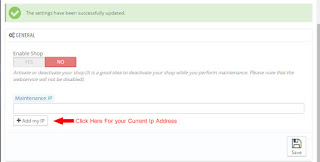
Note: Your IP address may change periodically; if you cannot access your front end in maintenance mode, update the Maintenance IP in the Back Office as described above.

Wednesday, June 17, 2015

Rename admin Folder but why?

The admin folder holds the php scripts to  manage your shop. Every customization or configuration that you make on your shop relies on this folder. So obviously you don't want any person sitting on there computer typing www.yourdomain.com/admin and guessing your password. It's better to change the "admin" folder name to something more secret and personal.

Why is it required to delete Install folder after installation of PrestaShop?

The reason for deleting install folder is that it contains the PHP code that configured your store. So it might be very easy for anybody who knows it is there to rerun the install process with erroneous information and mess up your store.
Steps to remove Install Folder:

How to clear Smarty Cache PrestaShop

The following tutorial is going to show you how to clear Smarty cache in PrestaShop 1.6.x.
There are 2 ways to clear cache Smarty  Cache 
Way 1: Clear Cache in Prestashop admin panel
Way 2 : Clear cache manually
Follow these instructions to clear smarty cache

Tuesday, June 16, 2015

Add horizontal menu on the top of your website

Today when I was configuring PrestaShop Shop I removed all the demo data the menu bar just got removed from web portal. After lots of search i found the solution how to get it back with custom menu items
Steps to add horizontal menu on the top of your website:


Change Facebook Like box on PrestShop Shop

Its better to change all customized modules before making your shop go live. In this tutorial we would change the "Facebook Like Box" with our Facebook page url
Please follow the instructions to configure your Facebook Like Box


Update your Social Networking Block Module

Social Networking Block allows you to add information about your brand's social networking accounts.
Steps to update your Social Networking Block under PrestaShop  Shop.


Change your business details using Contact Information Block Module

Installed PrestaShop now its time to fill all your company's detail on your eCommerce portal. Improve your store functionality and make it more user-friendly with modules.
Instructions to change your Contact Information :


Installed PrestaShop Now Clean Demo Data

Question: How to Clean Demo data which is installed with  PrestaShop?

Change Customer Care Contact Details

Installed PrestaShop  now you need to customize the shop as per your preference. Now we are gonna customize stores customer service number and email of your shop

Instructions :

Installing PrestaShop

PrestaShop is very easy to install.

Instructions for installation